
Guide · Oct 24, 2026 · 2 min read
Let Claude Code test your iOS app on a real iPhone
Connect Claude Code to Device MCP in one command, then let it build, run and tap through your app on a real device while you watch.
By The Device MCP team
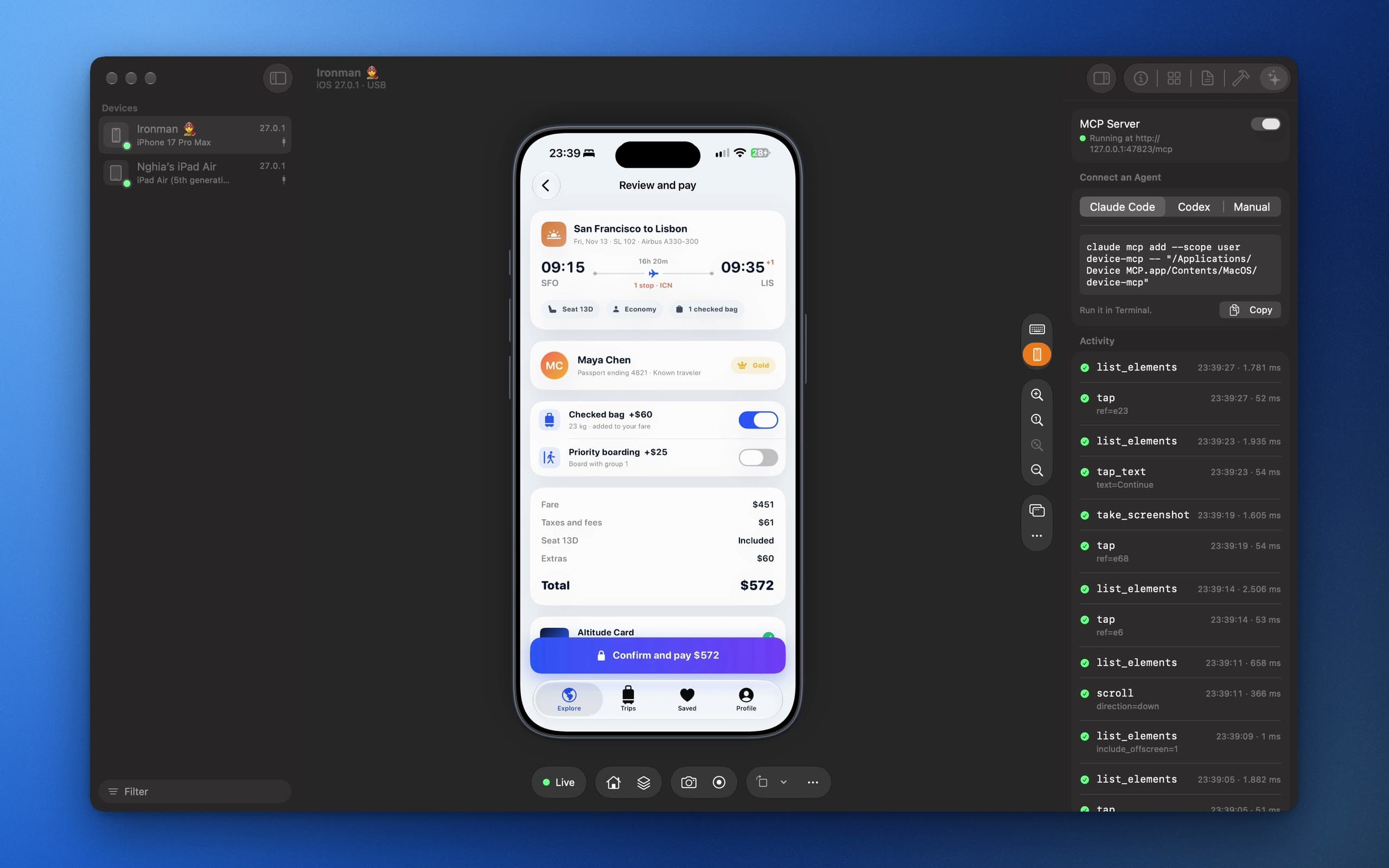
Simulators are great until the bug only shows up on hardware. With Device MCP, Claude Code can build your app, install it on your iPhone and tap through it, and you can watch every step in the mirror.
1. Plug in and mirror
Connect an iPhone or iPad on iOS 27. The first time, trust the Mac on the device and turn on Developer Mode (Settings › Privacy & Security). Open Device MCP: the device shows up in the sidebar and starts mirroring.
If something is in the way, like a locked screen, a missing trust or Developer Mode turned off, Device MCP says so in the sidebar, shows the fix, and carries on by itself once it's done.
2. Turn on the MCP server
Open the Inspector's Agent tab and click Turn On. Then add Device MCP to Claude Code:
claude mcp add device-mcp -- "/Applications/Device MCP.app/Contents/MacOS/device-mcp"
For Codex, use codex mcp add with the same command. Other MCP clients take the same path in their settings.
3. Ask
Open your project in Claude Code and describe what you want checked:
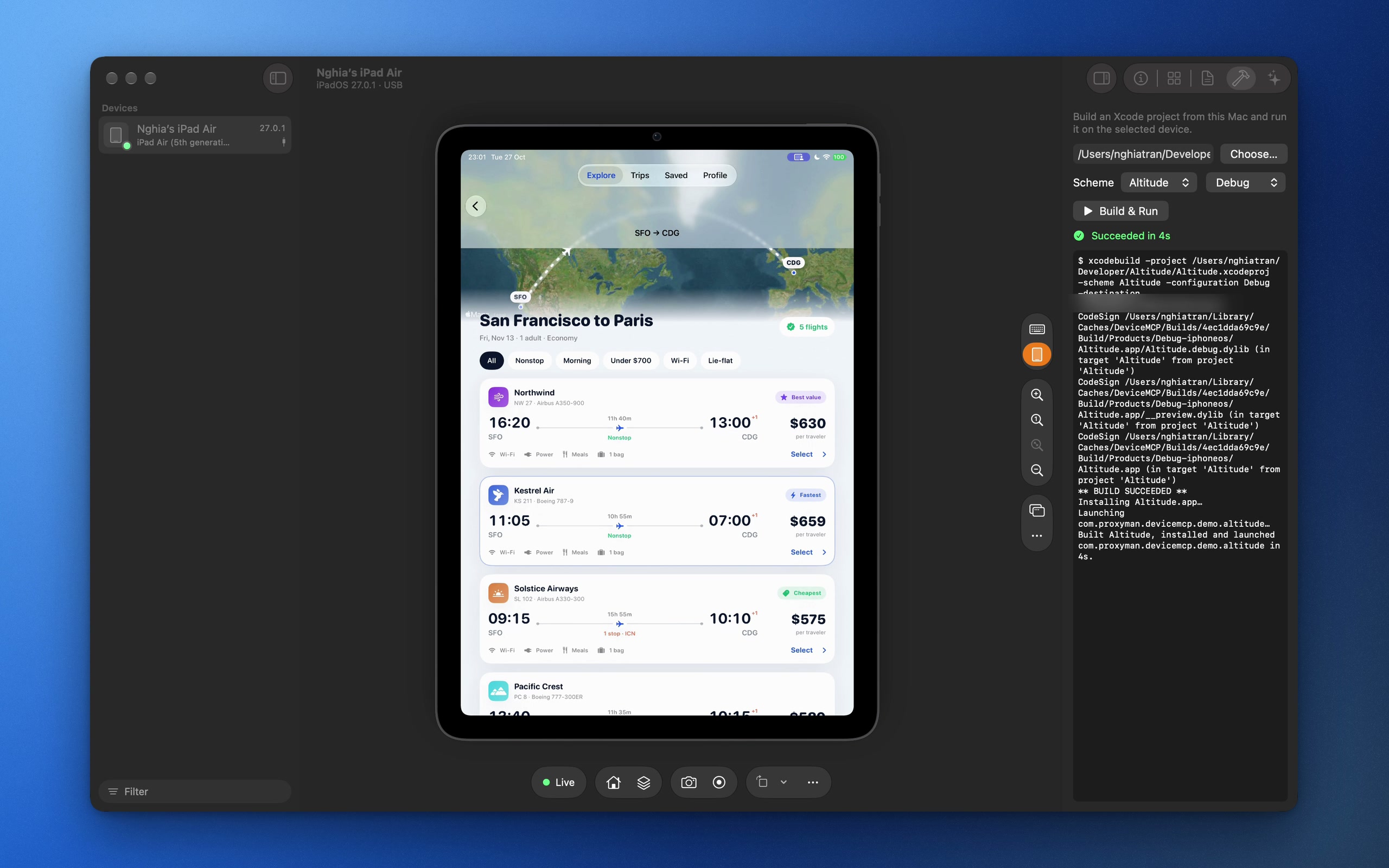
Build the app and run it on my iPad. Sign up with a test account, add three items to the cart, and check the total matches the sum of the prices. Take a screenshot of anything that looks wrong.
Claude Code calls build_and_run, waits for launch, then works through the app with take_screenshot, list_elements and tap_text. A purple Agent is driving badge appears on the mirror, and every call lands in the activity log with its timing.
When it needs you
Some things should never be automated: Face ID, a passcode, an Apple Account password. When one appears, Device MCP notices it in the next screenshot and notifies you. The agent calls request_human_action and waits. Unlock the phone, click Done, and it picks up where it left off.
Stay in control
Installing and deleting apps, building and opening links ask for your approval first. Choose Always Allow for the ones you trust.
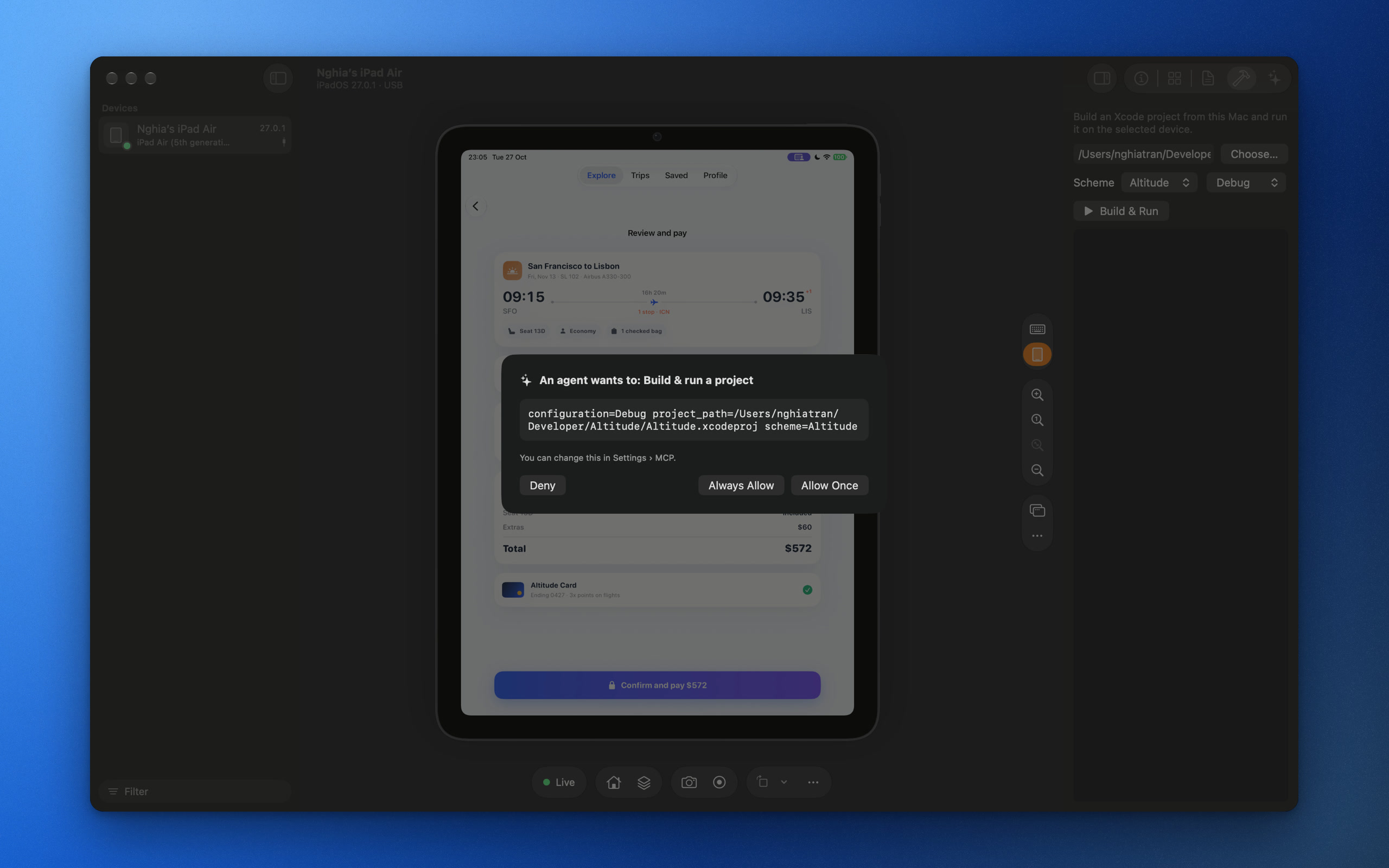 You can change that in Settings › MCP, rotate the MCP token, or turn the server off whenever you're done.