
Announcement · Nov 4, 2026 · 5 min read
Dark mode in one click: device settings from your Mac
Device MCP 0.6.0 adds a Settings tab to the Inspector. Switch an iPhone, an iOS Simulator or an Android emulator between Light and Dark, change the text size, and more, without touching the device.
By The Device MCP team
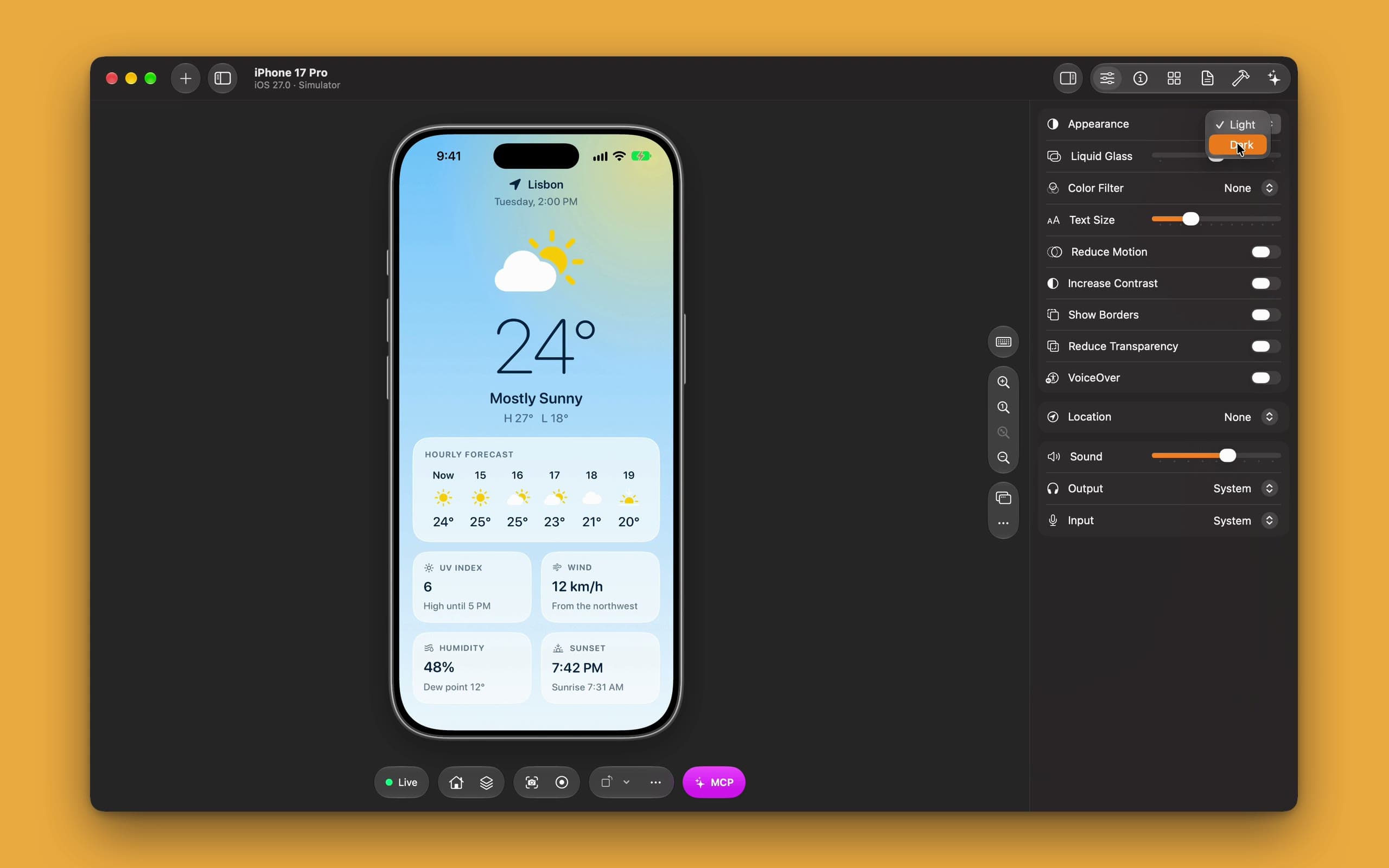
Every app has to look right twice: once in Light mode and once in Dark mode. Most bugs in Dark mode are small. Black text on a dark card. A logo with a white box around it. A border that's gone. They're easy to fix once you see them. The hard part is seeing them.
Checking means switching back and forth, over and over. On an iPhone you open Settings, find Display & Brightness, tap Dark, go back to your app, find the screen you were on, then do it all again for Light. On Android the setting lives somewhere else. Multiply that by every screen, and by every device you test on, and it's no wonder Dark mode bugs ship.
Device MCP 0.6.0 puts those settings one click away. There's a new Settings tab in the Inspector, next to Info, Apps and Reports. It changes the device itself, and your app follows at once.
What's in the Settings tab
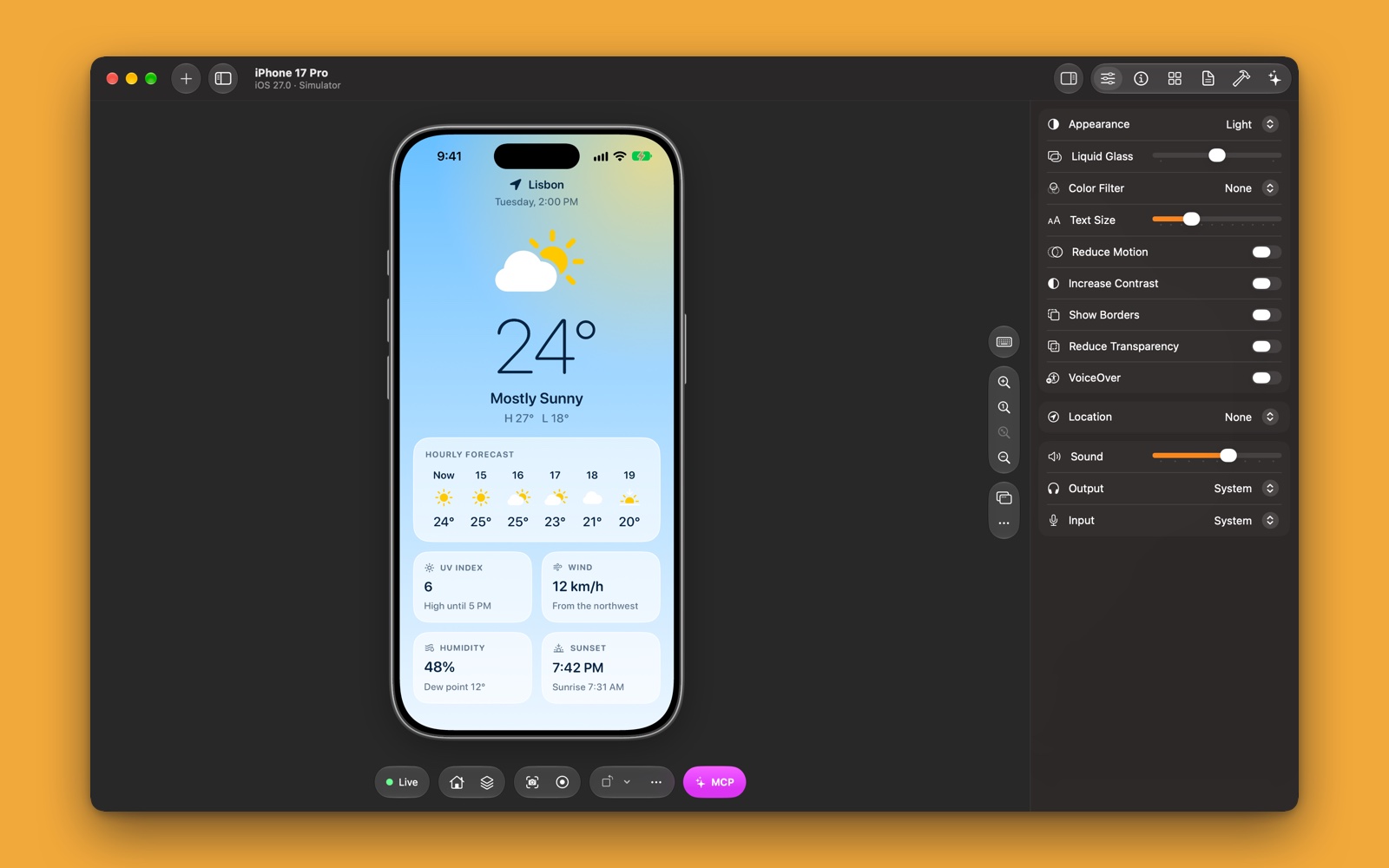
Open the Inspector and pick Settings. The tab shows the device's settings as they are right now, and a change goes to the device as soon as you make it.
- Appearance. Light or Dark.
- Text Size. From the smallest size to the largest accessibility size, on one slider.
- Reduce Motion and Increase Contrast. Two switches people really use, and apps often forget.
- Location. Pick one of a dozen cities, type coordinates, or open a GPX file to play a whole route.
On an iPhone, a real one or a simulator, you get more:
- Liquid Glass, from clear to tinted.
- Color Filter: grayscale and the three color blindness filters.
- Show Borders, Reduce Transparency and VoiceOver.
On an iOS Simulator, there's sound too: the volume, and which of your Mac's speakers and microphones it uses.
It works on Android, too
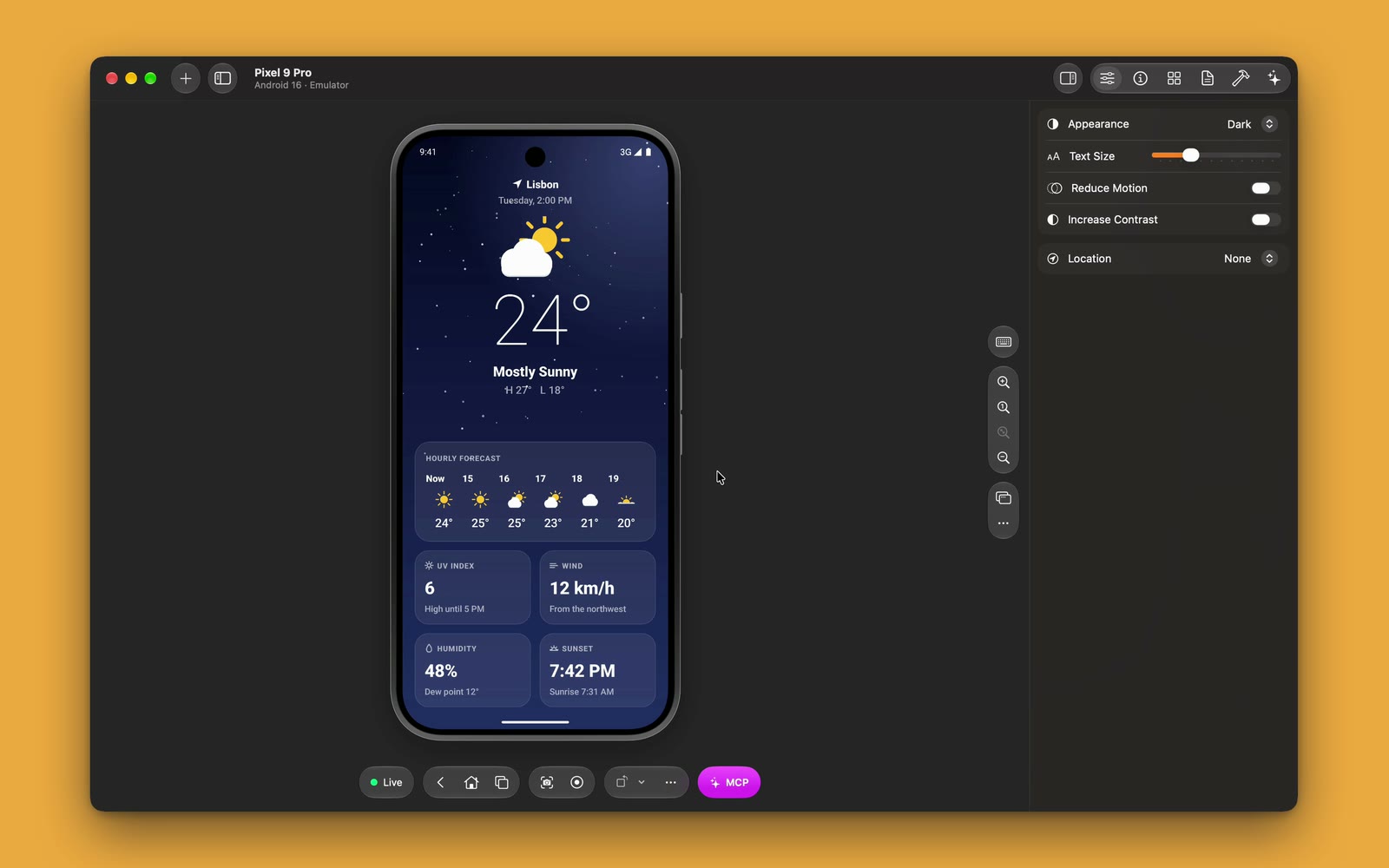
The same tab works for Android emulators. Select a Pixel in the sidebar, open Settings, and switch it to Dark. Your Android app follows, just like the iPhone one.
Android doesn't have every setting an iPhone has, so the tab only shows the ones that work there: Appearance, Text Size, Reduce Motion, Increase Contrast and Location. You never see a switch that does nothing.
This matters most when you ship on both. You can put an iPhone and an Android emulator side by side, switch both to Dark, and compare the same screen in your two apps in seconds.
Changes from anywhere show up
Settings don't only change in Device MCP. You might flip Dark mode in the device's own Settings app. Your AI agent might turn up the text size. Either way, the tab reads the device again and shows what's really set, so it never tells you something that isn't true.
That second case is worth a moment. Device MCP's MCP server already lets agents like Claude Code and Codex change the appearance, the accessibility settings and the location. Now you can watch those changes happen. Ask your agent to "check every screen of the app in Dark mode and with the largest text size", and the Settings tab moves along as it works.
Five things to check, now that it's easy
Here's a short list we run through on our own apps. Each one takes a click.
- Text on cards and sheets. Switch to Dark and look for text you can't read. A hard-coded color is the usual cause.
- Images and icons. Logos and pictures made for a white background often show a box or vanish in Dark mode.
- The largest text size. Drag Text Size all the way to the right. Look for labels that get cut off and buttons pushed off the screen.
- Motion. Turn on Reduce Motion and open the screens with big animations. They should still work, just calmer.
- Location. If your app shows nearby places or the weather, pick a city on the other side of the world and see what happens.
Meet Daybreak
The app in the videos is Daybreak, a small weather app we made for this demo. It doesn't fetch any weather: Lisbon is always 24° and mostly sunny. What it does well is change with the appearance. By day it's a bright sky. By night it's deep blue, with stars. We built it twice, once for iPhone and once for Android, with the same design, so you can see the same app follow the same click on both.
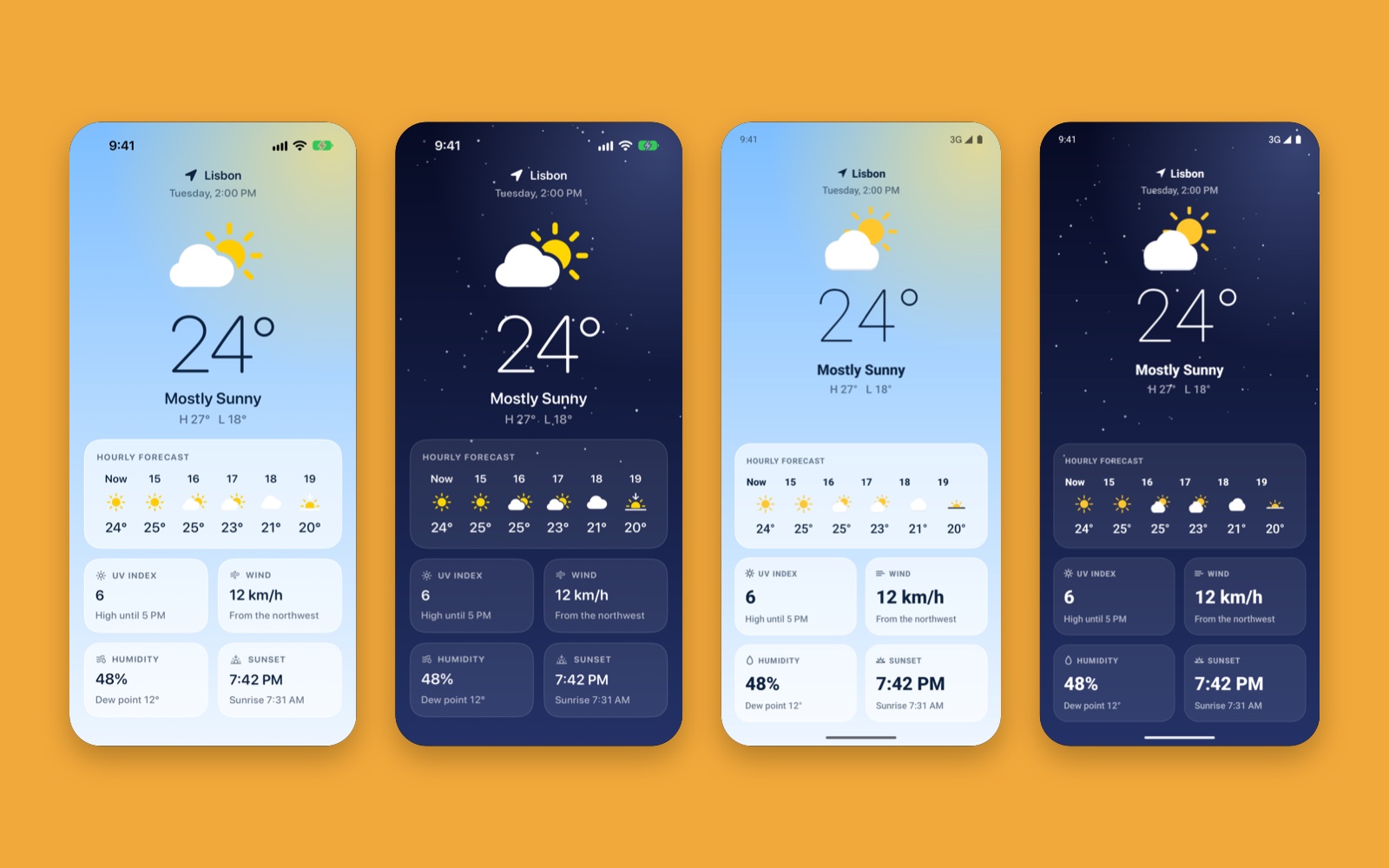
You don't need anything special in your own app for this to work. If your app follows the system appearance, it follows Device MCP's too.
Where it fits
Device MCP started as a way to mirror a real iPhone on your Mac and let AI agents use it. Since then it has grown to iOS Simulators and Android emulators, all in one sidebar. The Settings tab is part of that same idea: the things you used to do on the device, you can now do from your Mac, without picking anything up.
Xcode's Device Hub has a similar panel for simulators. Device MCP brings it to real iPhones and Android emulators as well, and puts it next to everything else you use to test: the mirror, the Apps and Reports tabs, and the MCP server for your agent.
Get it
The Settings tab is in Device MCP 0.6.0, on every plan, Free included. Device MCP updates itself, or choose Device MCP → Check for Updates… if you have it. If you don't, download Device MCP and plug in your iPhone, or start a simulator or an emulator from the sidebar.
Then open the Inspector, pick Settings, and switch to Dark. It's one click. That's the whole point.
Device MCP is made by Proxyman LLC, the team behind  Proxyman,
 Tiny Shield and
 TCP Viewer.