
Guide · Nov 24, 2026 · 3 min read
How to inspect a web page on your iPhone from your Mac
Open Safari's Web Inspector on a Safari tab or your app's web view, on an iPhone, iPad or iOS Simulator, right next to its mirror in Device MCP. Select a tag and watch the device highlight it.
By The Device MCP team
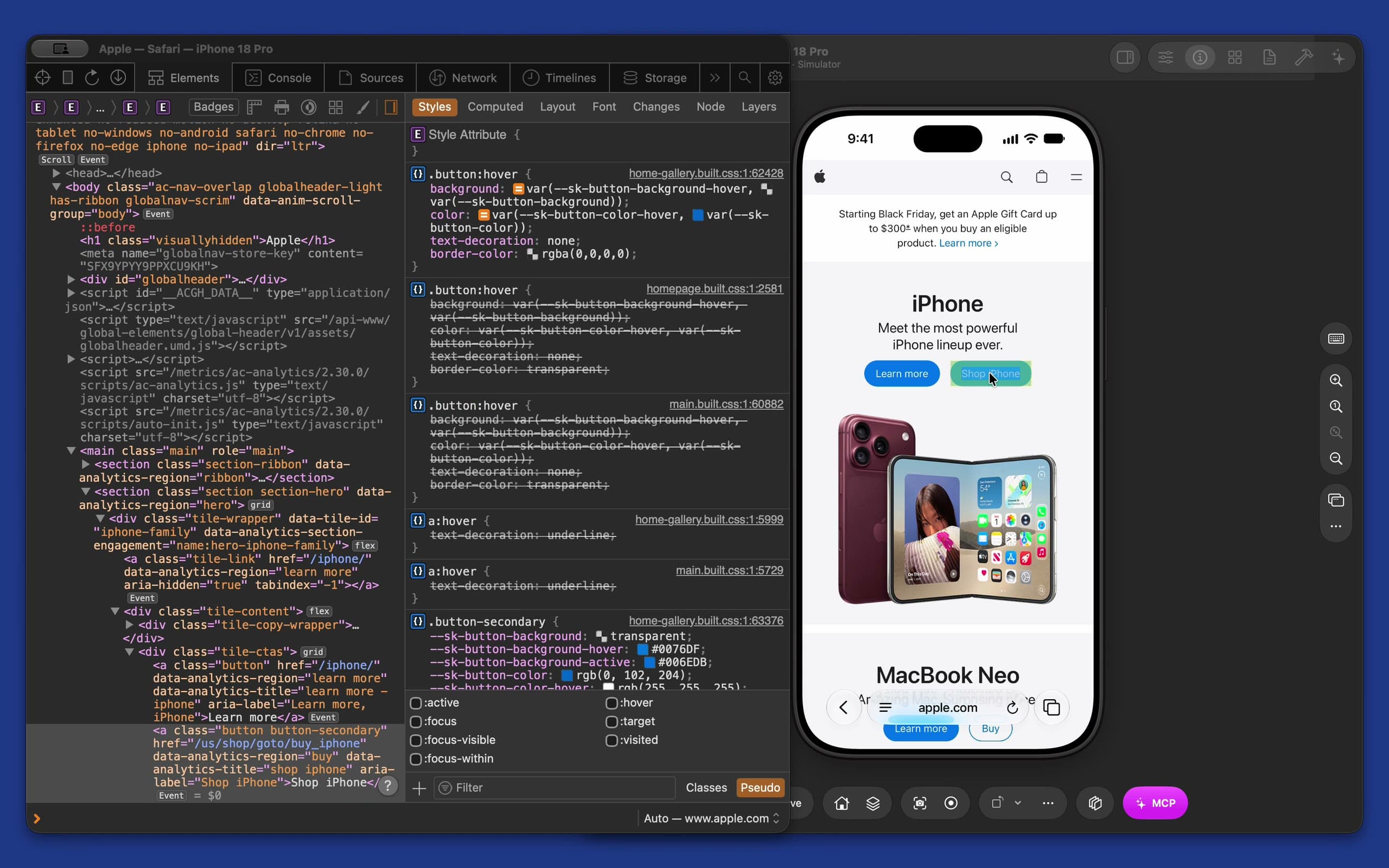
A page that looks right in Safari on your Mac can still break on an iPhone: a header that's too tall, a button under the notch, a style that only applies on a small screen. To find out why, you need the page's real DOM and styles, as the iPhone renders them.
Apple's answer is Safari's Web Inspector, through the Develop menu of Safari on your Mac. Device MCP 1.6 puts the same inspector next to the device's mirror, so you see the page and its elements side by side, and pick elements by clicking the screen.
1. Turn on Web Inspector on the iPhone
On an iPhone or iPad, open Settings › Apps › Safari › Advanced and turn on Web Inspector. iOS keeps it off until you do. If you forget, Device MCP shows you these steps when you open the list.
An iOS Simulator needs nothing: its pages can be inspected right away.
2. Open the list of web views
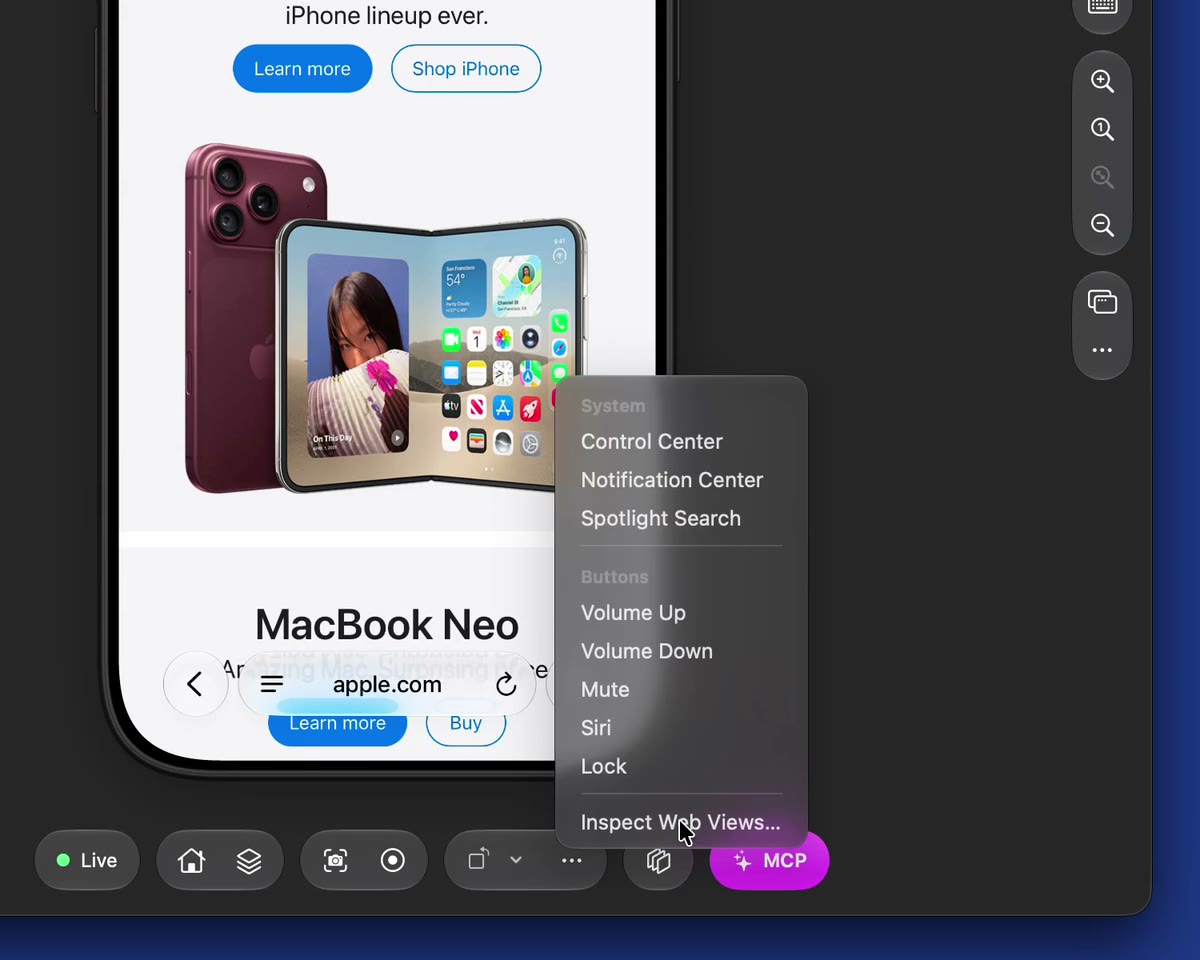
Mirror the device in Device MCP, click … under the mirror and choose Inspect Web Views…. The same item is in the menu bar, under Device.
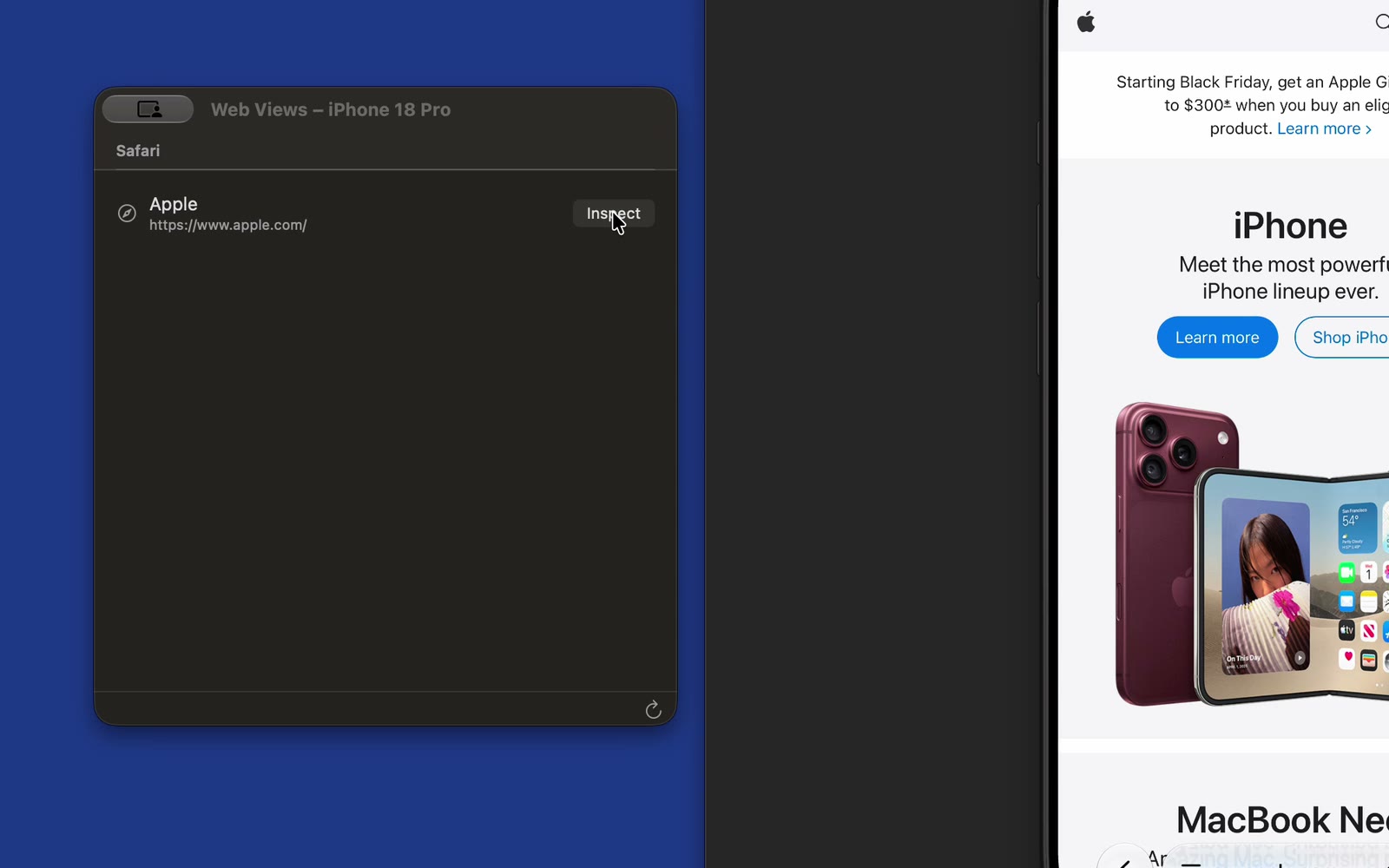
The Web Views window lists every page you can inspect on the device, by app: Safari's tabs, and the web views of apps that allow it. Each shows its title and address.
3. Inspect the page
Click Inspect. Safari's Web Inspector opens in its own window, connected to the page on the device: Elements, Styles, Console, Network, Sources and Storage all work as they do in Safari.
Select a tag in Elements and the device highlights its element, with its padding, margins and grid lines. Here the hero's <section> on apple.com is selected, and its grid shows on the iPhone:
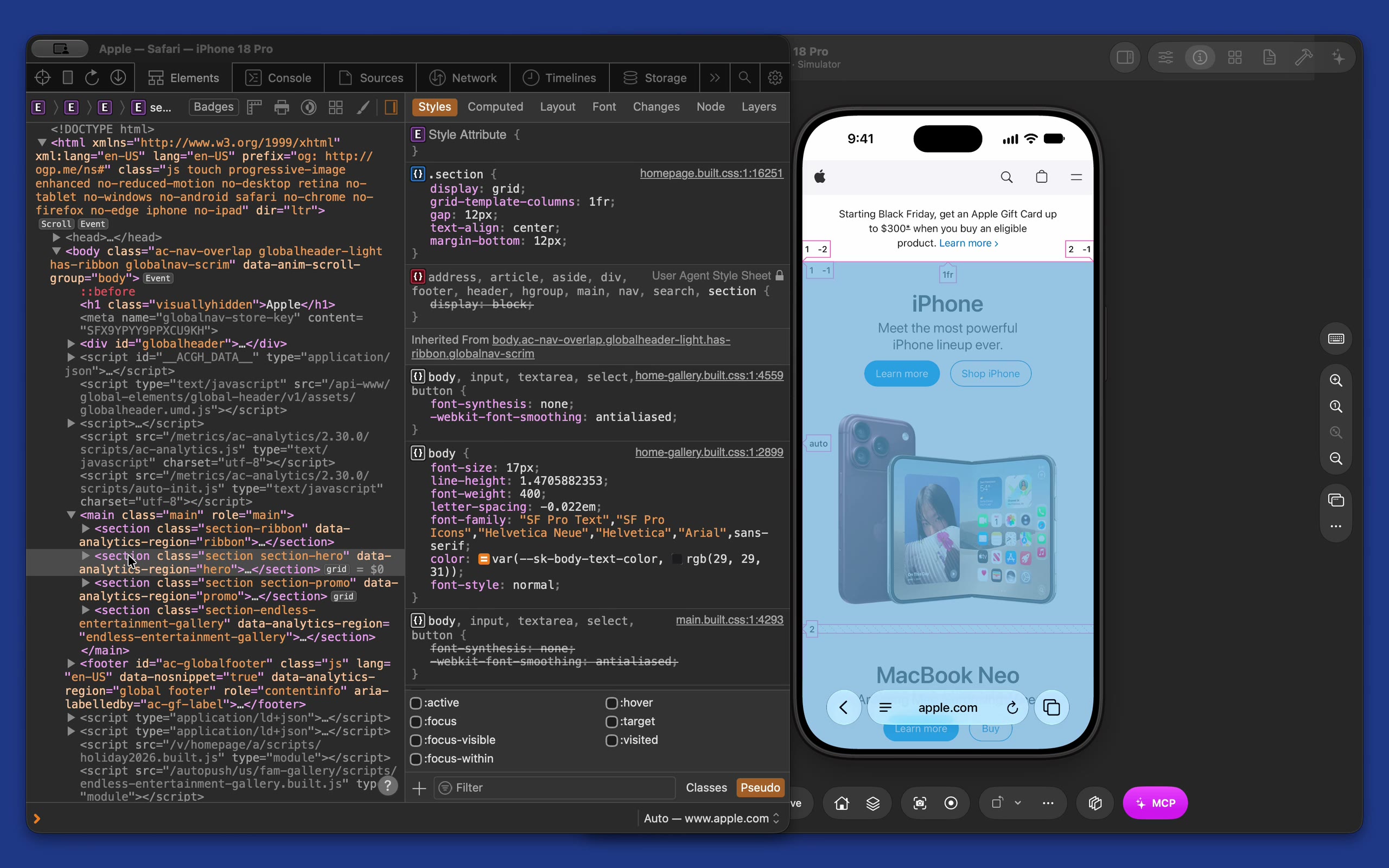
To go the other way, click the target at the top left of the inspector (<kbd>⇧⌘C</kbd>), then click an element in the mirror. The tree opens down to it, and its styles show in the sidebar.
Your own app's web views
A WKWebView in your app shows in the list while the app runs, once you make it inspectable. Since iOS 16.4, web views aren't inspectable unless the app says so, even in debug builds:
let webView = WKWebView(frame: .zero)
#if DEBUG
webView.isInspectable = true
#endif
Run the app on the device or a simulator, open Inspect Web Views…, and your web view is listed under your app's name.
Let your AI agent measure it
If Device MCP is connected to Claude Code, Codex or another MCP client, your agent can read web pages too. list_webviews lists them, and inspect_webview_element measures what a CSS selector matches: its box on the screen, its inline style and its computed styles, without changing the page. It can also open the Web Inspector window for you with open_web_inspector.
The sheet header in my app's web view looks too tall on the simulator. Measure it and tell me why.
For a header like that, the agent finds the web view, measures .sheet-header and comes back with the numbers: an inline height: 180px on a header whose content needs 78. Scripts can do the same with device-mcp-cli webviews inspect.
When a page isn't listed
- iPhone or iPad: check that Web Inspector is on in Settings › Apps › Safari › Advanced.
- Your app: it has to be running, with
isInspectableset on the web view. An app in the background may not answer: bring it to the front. - Already inspected: a page takes one inspector at a time. Close Safari's Web Inspector on your Mac if it has the page open.
Inspecting web views is part of Device MCP Free, on iPhones, iPads and iOS Simulators. See Web Inspector in the docs for the details.
What's next
- DocsWeb InspectorOpen Safari's Web Inspector on a Safari tab or your app's web view, on an iPhone, iPad or iOS Simulator, right from Device MCP. Your AI agent can measure web pages too.
- DocsMCPConnect Claude Code, Codex, Cursor or any MCP client to Device MCP, so your AI agent can see, tap, type and test on your iPhone and iPad.
- DocsCommand LineDrive your iPhone, iPad, Android device or simulator from Terminal, shell scripts and CI with device-mcp-cli, Device MCP's command line. Every command can answer in JSON.
Device MCP is made by Proxyman LLC, the team behind  Proxyman,
 Tiny Shield and
 TCP Viewer.