
Announcement · Nov 20, 2026 · 5 min read
Apple Vision Pro simulators in Device MCP: your agent looks and pinches
Device MCP now mirrors and controls visionOS 27 simulators. A click becomes a look and a pinch, and your AI agent gets the same input over MCP, so it can open your visionOS app, use it and tell you what it saw.
By The Device MCP team
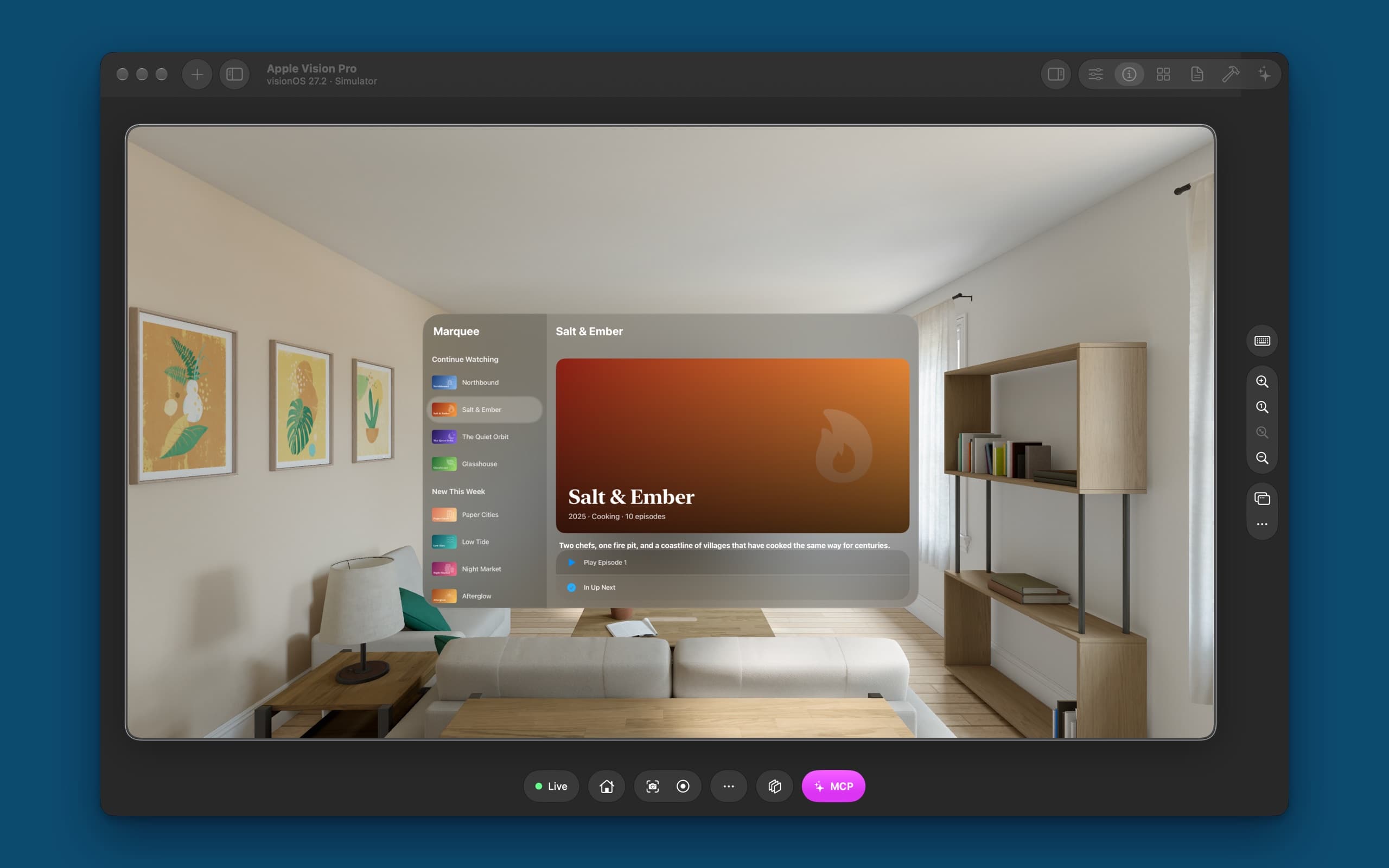
A visionOS app doesn't live on a screen. Its windows float in a room, and you use them with your eyes and your fingers: look at a button, pinch, and it's pressed. That's the hard part for an AI agent. It can tap an iPhone, but there's no point to tap on a Vision Pro, only somewhere to look.
Device MCP now mirrors and controls Apple Vision Pro simulators. They sit in the sidebar next to your iPhones, Apple Watches and Apple TVs. A click on the mirror becomes a look and a pinch, and your agent gets the same input over MCP.
What you get
- Apple Vision Pro in the sidebar. Choose + → New Simulator → Apple Vision Pro and press Start.
- The view the wearer sees. Device MCP reads the simulator's view directly: 3840 × 2160, lossless, at about 60 frames a second.
- Look and pinch with your mouse. Click to look at a point and pinch. Drag to pinch and move your hand, which scrolls a window's content. Home in the toolbar presses the Digital Crown.
- The same MCP server. If Device MCP is already in Claude Code or Codex, your agent can use a Vision Pro simulator now.
One prompt, a look and a pinch
The screenshot above is from a real run. We installed Marquee, a small streaming app with made-up shows, on an Apple Vision Pro simulator. On visionOS it's a window with the shows in a sidebar and the one you pick beside them. Then we gave Claude Code one sentence:
On the Apple Vision Pro simulator, open the Marquee app, find the cooking show and add it to Up Next. Then tell me what it's about.
Here's what it did, in 24 seconds:
list_devicesfound the running Vision Pro, andlaunch_appopened Marquee by its name.take_screenshotshowed the window in the room, andlist_elementsread the words in it: the sidebar's shows, the featured show's title and its two actions.tapon Salt & Ember's row looked at it and pinched. The detail pane opened: 2025 · Cooking · 10 episodes.tapon Add to Up Next looked and pinched again, and a last screenshot showed In Up Next with a blue checkmark.
Then it answered:
I added Salt & Ember to Up Next in Marquee on the Apple Vision Pro simulator. The button now reads "In Up Next" with a blue checkmark.
About the show: It's a cooking series from 2025 with 10 episodes. The app's description is: "Two chefs, one fire pit, and a coastline of villages that have cooked the same way for centuries."
It also said that Night Market sounds food-related too, and asked whether we meant that one. A good tester notices that.
How a look and a pinch work
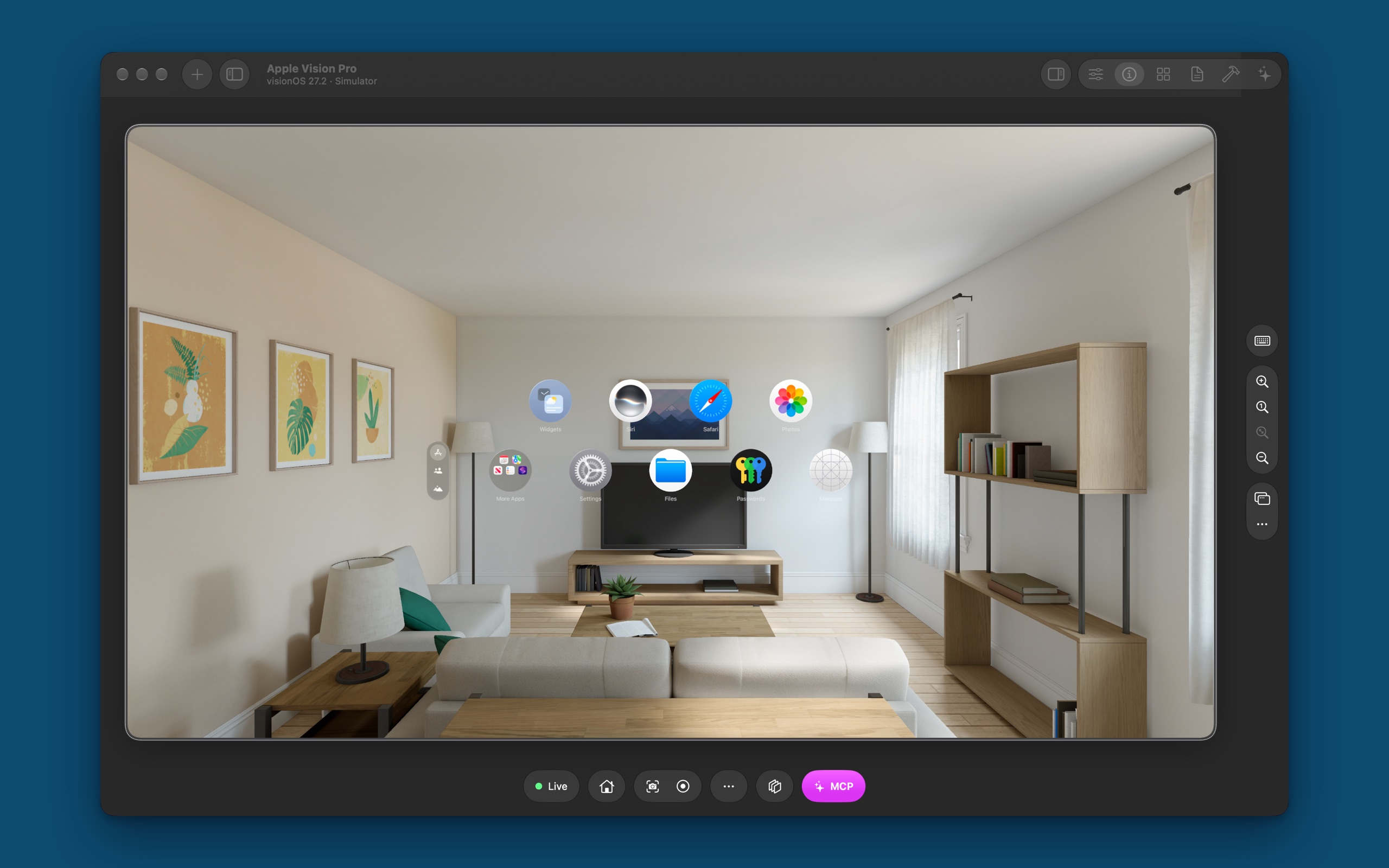
The Vision Pro simulator doesn't take touches. Xcode's Device Hub drives it with a look and a hand instead, and so does Device MCP, with nothing installed in the simulator:
- A tap sends a gaze ray from the wearer's eyes through the point on the picture, waits a moment so the look lands, then pinches and lets go. You see the highlight move to what's looked at, as on a real headset.
- A drag or a scroll pinches and moves the hand. What's pinched moves with it, so a window's list scrolls the way your agent asked.
- Buttons go in as the headset's own: the Digital Crown for Home.
Reading the screen works differently too. On an iPhone, your agent reads the accessibility tree: every button with its label and frame. visionOS places its windows in 3D, so their elements have no place on the picture. Device MCP reads the text on screen instead, the way a person sees it, and your agent taps by those words with tap_text or by their position.
| Tool | On an Apple Vision Pro |
|---|---|
tap, tap_text | Look at the point, or the words, and pinch |
swipe, scroll, drag | Pinch and move the hand |
press_button home | Presses the Digital Crown |
list_elements | The words on screen, read like a person reads them |
launch_app | Opens an app by its name or bundle id |
start_simulator | Starts or creates a Vision Pro simulator |
What to ask it
- Walk your app's main paths. "Open my app on the Vision Pro simulator, sign in with the test account and open the first item." Your agent tells you where it got stuck.
- Check what fits. Windows on visionOS are a different shape from an iPhone's screen. Ask your agent to visit every screen and report text that's cut off or crowded.
- Compare platforms. "Open the same screen on my iPhone and on the Vision Pro simulator and list what's different." Device MCP Pro mirrors both at once.
- Check a setting. "On the Vision Pro, open Settings › Accessibility and scroll to Speech."
What's different from an iPhone
- Simulators only. Device MCP doesn't mirror a real Apple Vision Pro.
- Open apps by name. The Home View's icons light up under a look but don't take a pinch, so your agent uses
launch_app. - Not every control takes a pinch yet. In our tests, list rows and links took it every time, in our app and in Settings, but buttons outside a list only lit up. If yours do, tell us.
- No Settings tab or clean status bar. visionOS has no light mode to switch to. Use the simulator's own Settings app.
- Starts full. Slim simulators are iOS and watchOS only.
The full details are in the Apple Vision Pro docs.
Try it
Download Device MCP, or choose Device MCP → Check for Updates… if you have it. Add a visionOS 27 runtime in Xcode → Settings → Components, start an Apple Vision Pro simulator from the sidebar, then add Device MCP to Claude Code with one command:
claude mcp add --scope user device-mcp -- "/Applications/Device MCP.app/Contents/MacOS/device-mcp"
Then ask your agent to open your app on the Vision Pro. Apple TV simulators are here too, with a Siri Remote for your agent: read how it holds the remote.
What's next
- DocsApple Vision ProStart, mirror and control Apple Vision Pro simulators on visionOS 27 in Device MCP, with a look and a pinch from your mouse, and let your AI agent test your visionOS app with the same MCP tools.
- BlogApple TV simulators in Device MCP: hand your agent the remoteDevice MCP now mirrors and controls tvOS 27 simulators. You get a Siri Remote on your keyboard, and your AI agent gets one over MCP: it moves the focus, selects and checks the screen, the way you test a TV app.
- DocsMCPConnect Claude Code, Codex, Cursor or any MCP client to Device MCP, so your AI agent can see, tap, type and test on your iPhone and iPad.
Device MCP is made by Proxyman LLC, the team behind  Proxyman,
 Tiny Shield and
 TCP Viewer.