
Engineering · Nov 19, 2026 · 4 min read
Slim iOS Simulators: the same simulator, without the background noise
Device MCP now starts iOS Simulators without Siri, Spotlight indexing, iCloud and over a hundred other background services. Here's what that saves, what it doesn't, and how it works.
By The Device MCP team
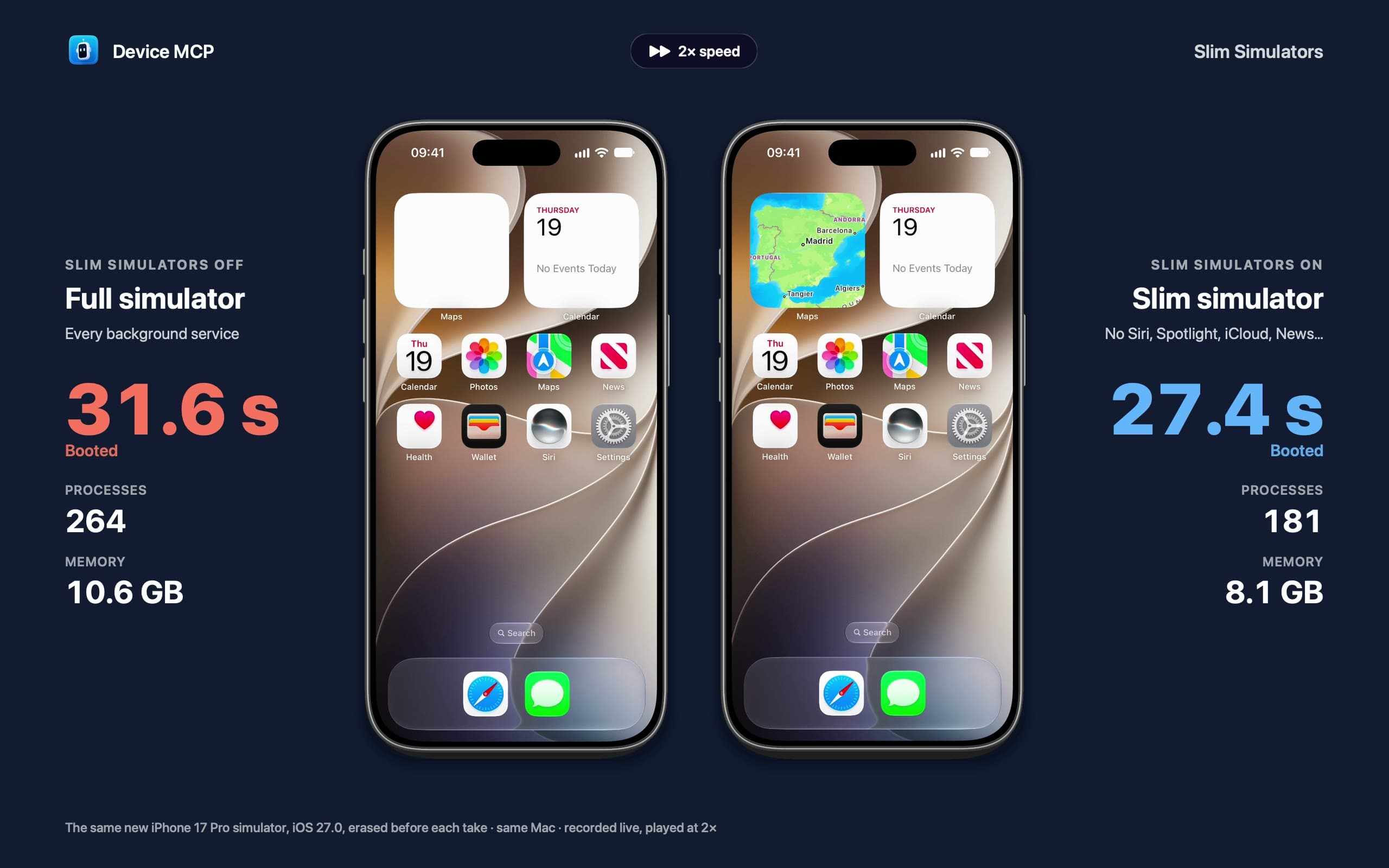
A fresh iOS 27 simulator is a busy place. Before your app even opens, it runs about 200 processes: Siri and its speech models, Spotlight indexing, News fetching stories, iCloud trying to sign in, photo analysis, Game Center, Family Sharing and a long tail of analytics. None of it is what you're testing. All of it competes with your app, your build and your other simulators for your Mac's memory and CPU.
Device MCP now starts iOS Simulators slim. It's the same simulator and the same iOS, just without the background services testing doesn't use. Here's a new iPhone 17 Pro simulator started twice in Device MCP, full and slim:
What we measured
We used one iPhone 17 Pro simulator on iOS 27.0 and a MacBook Pro with an M5 Max. We started it from Device MCP three times with every service and three times slim, alternating, and measured each run a minute after the start. Memory is the footprint of every process the simulator runs, added up: the same figure Activity Monitor shows, which counts compressed memory too.
| A minute after the start | Full | Slim | |
|---|---|---|---|
| Memory | 8.8 GB | 5.1 GB | 42% less |
| Processes | 206 | 122 | 84 fewer |
| CPU time used so far | 245 s | 154 s | 37% less |
| From Start to ready | 2.4 s | 2.2 s | about the same |
The last row is worth being honest about. A simulator that has booted before is up in about two seconds either way, and slim doesn't make that measurably faster. The difference comes after the boot. In its first minute, a full simulator keeps about four CPU cores busy with work you never asked for. The slim one does a third less, and then it stays smaller for as long as it runs.
A brand-new simulator is different: its first boot sets everything up, and every service that starts adds to it. We created three new iPhone 17 Pro simulators each way. The slim ones were ready after 26.9 seconds and the full ones after 37.6 (medians), and a minute in they ran 181 processes in 8.7 GB against 283 in 12.9 GB. Other work kept the Mac busy during those runs, so treat the seconds as a fair comparison rather than a record. The video above is one more pair: 27.4 seconds against 31.6.
What's off, and what stays on
simslim, the open-source project we built on (more below), turns off every service it knows is safe to stop. Device MCP turns off fewer, on purpose. Your app is the thing being tested, so what it might use stays on:
- Stays on: push notifications, in-app purchases (StoreKit), universal links, the Photos, Contacts and Calendar pickers, and the Home Screen's wallpaper and widgets. On a watch simulator, and on an iPhone paired with one, Watch Connectivity stays on too.
- Off: Siri and Apple Intelligence, Spotlight search, iCloud and Apple Account sync, Health, Home and Fitness, News, Weather and Maps' background data, Messages and FaceTime, AirDrop, Find My and Continuity, Screen Time, device management, App Clips, and analytics and diagnostics.
The wallpaper was the hardest call. Without the Home Screen's poster and widget services, a slim simulator saves about another 1.5 GB, but its wallpaper turns black and every widget becomes a blank white tile. That looks broken in a mirror, so we kept them.
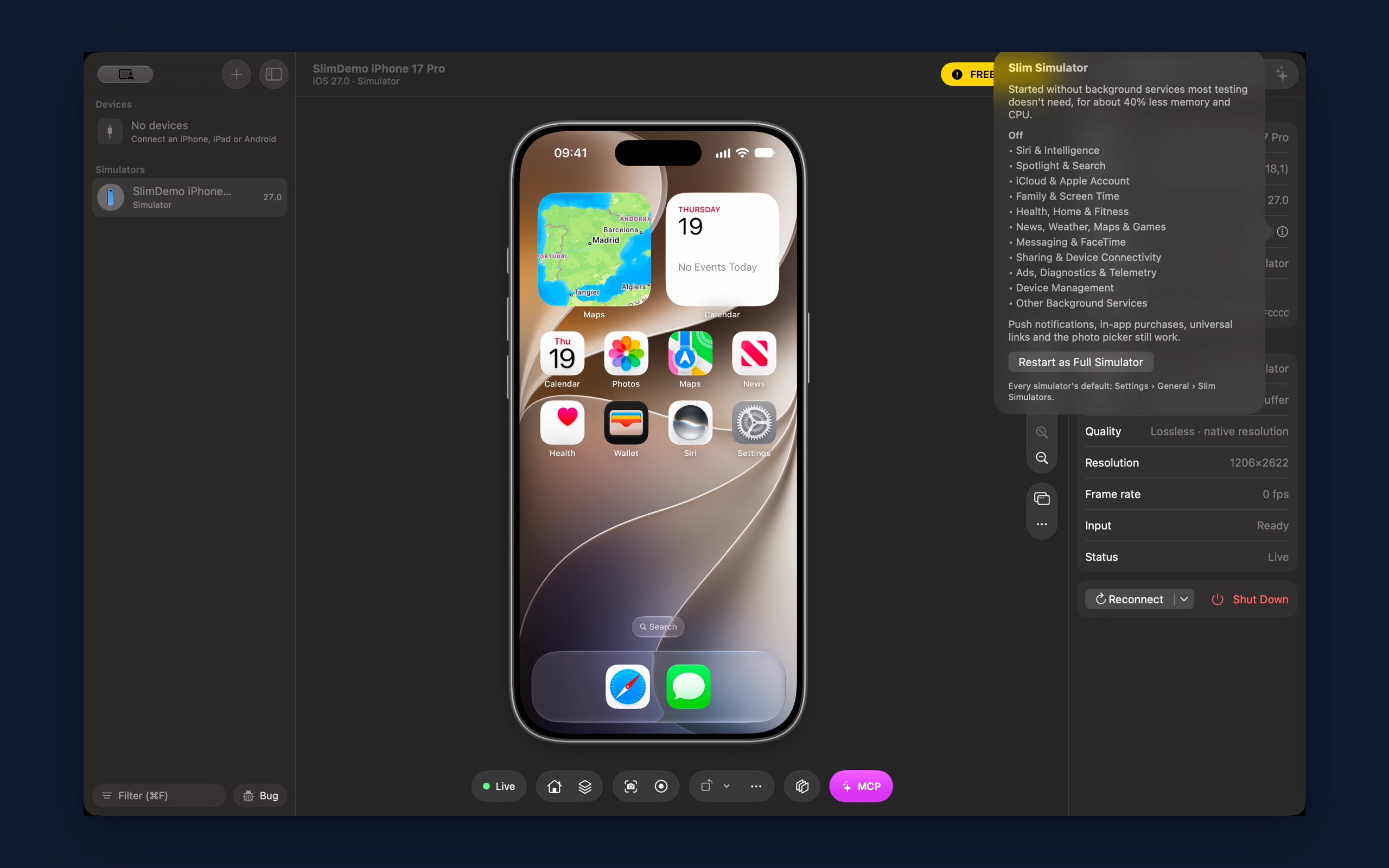
To check a simulator, select it and open the Info tab: Version says Slim or Full, and ⓘ lists what's off.
How it works
Every simulator has its own launchd, the process that starts all of its services. When it starts, it reads a small file on your Mac that says which services are turned off. Device MCP writes its list into that file just before the boot, so the simulator comes up slim in one ordinary boot. There's no reboot and no extra step, and nothing is installed in the simulator.
Once the boot has finished, Device MCP puts the file back exactly as it was. The running simulator keeps what it read, but the next time Xcode or Simulator.app starts that same simulator, it's the full one again. Slim is something Device MCP does to a boot, not a change it leaves behind. If Device MCP quits halfway through a boot, it puts the file back the next time it opens.
The list of services comes from simslim, an MIT-licensed tool by MobAI that does the same for large fleets of simulators. Its catalog is the valuable part: which services are safe to stop, and which ones must never be stopped because the simulator won't boot without them. Device MCP ports the mechanism to Swift and copies the catalog from a pinned simslim release. When a new iOS comes out, a simulator on it starts full until we've checked slim simulators on it and shipped the update.
When you need the full simulator
Some tests need a service that slim turns off: Siri, Spotlight, HealthKit, iCloud sync. Three ways to get it:
- One simulator: click ⓘ next to Version in the Info tab, then Restart as Full Simulator. Device MCP keeps starting that simulator full until you switch it back.
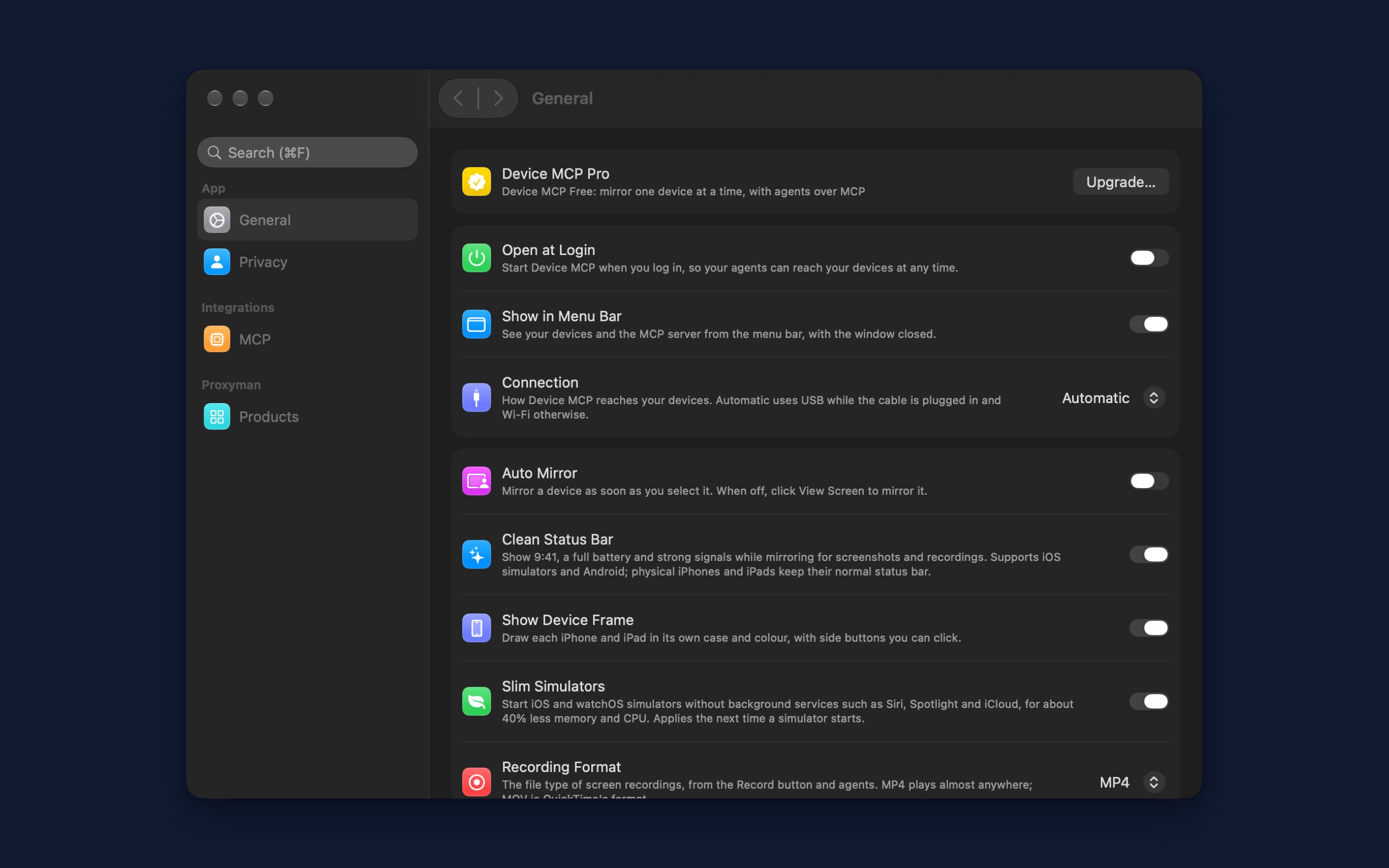
- Every simulator: turn off Settings → General → Slim Simulators.
- Your agent: simulators an agent starts are slim too, and an agent's answer says so. If your app needs a service that's off, ask it to start the full simulator.
Try it
Update Device MCP and start a simulator from the sidebar. Slim Simulators is on by default. The iOS Simulator docs have the details.
What's next
- DocsiOS SimulatorStart, mirror and control iOS Simulators in Device MCP, and let your AI agent test your app on them with the same MCP tools.
- DocsMultiple DevicesMirror several iPhones and iPads at the same time, each in its own window.
- DocsMCPConnect Claude Code, Codex, Cursor or any MCP client to Device MCP, so your AI agent can see, tap, type and test on your iPhone and iPad.
Device MCP is made by Proxyman LLC, the team behind  Proxyman,
 Tiny Shield and
 TCP Viewer.