
Announcement · Nov 20, 2026 · 5 min read
Apple TV simulators in Device MCP: hand your agent the remote
Device MCP now mirrors and controls tvOS 27 simulators. You get a Siri Remote on your keyboard, and your AI agent gets one over MCP: it moves the focus, selects and checks the screen, the way you test a TV app.
By The Device MCP team
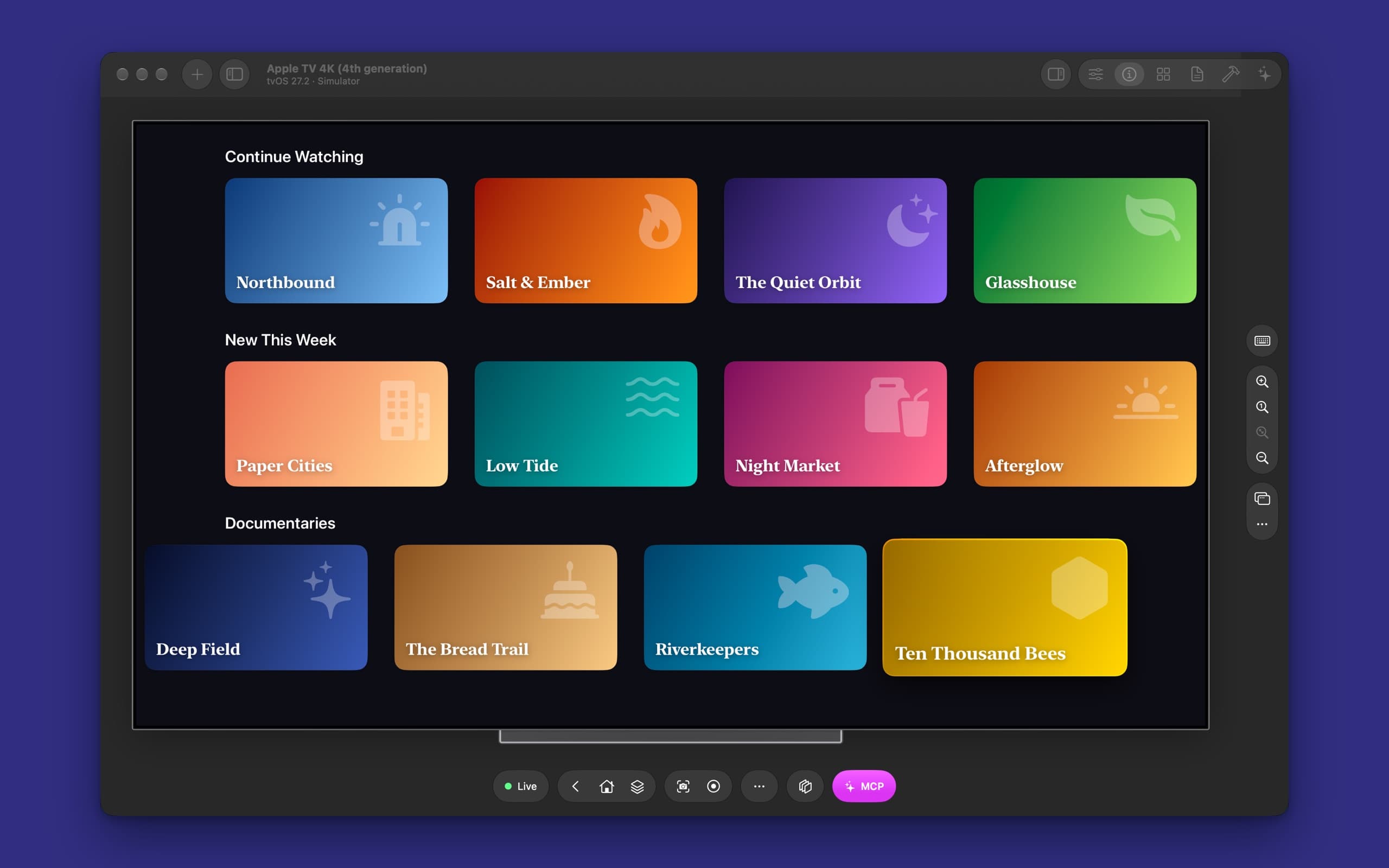
An iPhone app is easy to hand to an AI agent: it looks at the screen and taps. A TV app isn't. There's nothing to tap on an Apple TV. One item on the screen has the focus, and a remote moves it, one press at a time, until the thing you want is lit up and you click. That's why TV apps still get tested by a person with a remote in their hand, long after the iPhone version has an agent checking every build.
Device MCP now mirrors and controls Apple TV simulators. They sit in the sidebar next to your iPhones, iPads and Apple Watches, in a frame that looks like the TV they play on. You get a Siri Remote on your keyboard, and your agent gets the same remote over MCP.
What you get
- Apple TV in the sidebar. Choose + → New Simulator → Apple TV, pick a model and press Start. Apple TV 4K works at 4K and at 1080p.
- A sharp mirror. Device MCP reads the simulator's TV output directly: 3840 × 2160 at 4K, lossless, in the frame Xcode's Device Hub draws, a thin bezel on a stand.
- The remote on your Mac. The arrow keys move the focus, Return is Select and Esc is Menu. The toolbar has Menu, the TV button and the App Switcher, and the Device menu adds Select and Play/Pause.
- The same MCP server. If Device MCP is already in Claude Code or Codex, your agent can use an Apple TV simulator now. No second setup.
One prompt, one remote
The screenshot above is from a real run. We wrote Marquee, a small streaming catalog with made-up shows, installed it on an Apple TV 4K simulator, and gave Claude Code one sentence:
On the Apple TV simulator, open the Marquee app, find the documentary about bees and add it to Up Next. Then tell me how many episodes it has.
Nothing in it says how to use a remote. Here's what Claude Code did, in 24 seconds:
list_devicesfound the running Apple TV 4K, andlaunch_appopened Marquee by its name.- A screenshot showed the featured banner and three rows of shows, with the focus on the banner.
press_key downthree times moved the focus to the Documentaries row, and the answer listed the screen again with the focused item marked. Ten Thousand Bees was two to the right.press_key righttwice, thenpress_button select, opened its page.- One more
rightandselectpressed Add to Up Next, and a last screenshot showed the button turn into In Up Next.
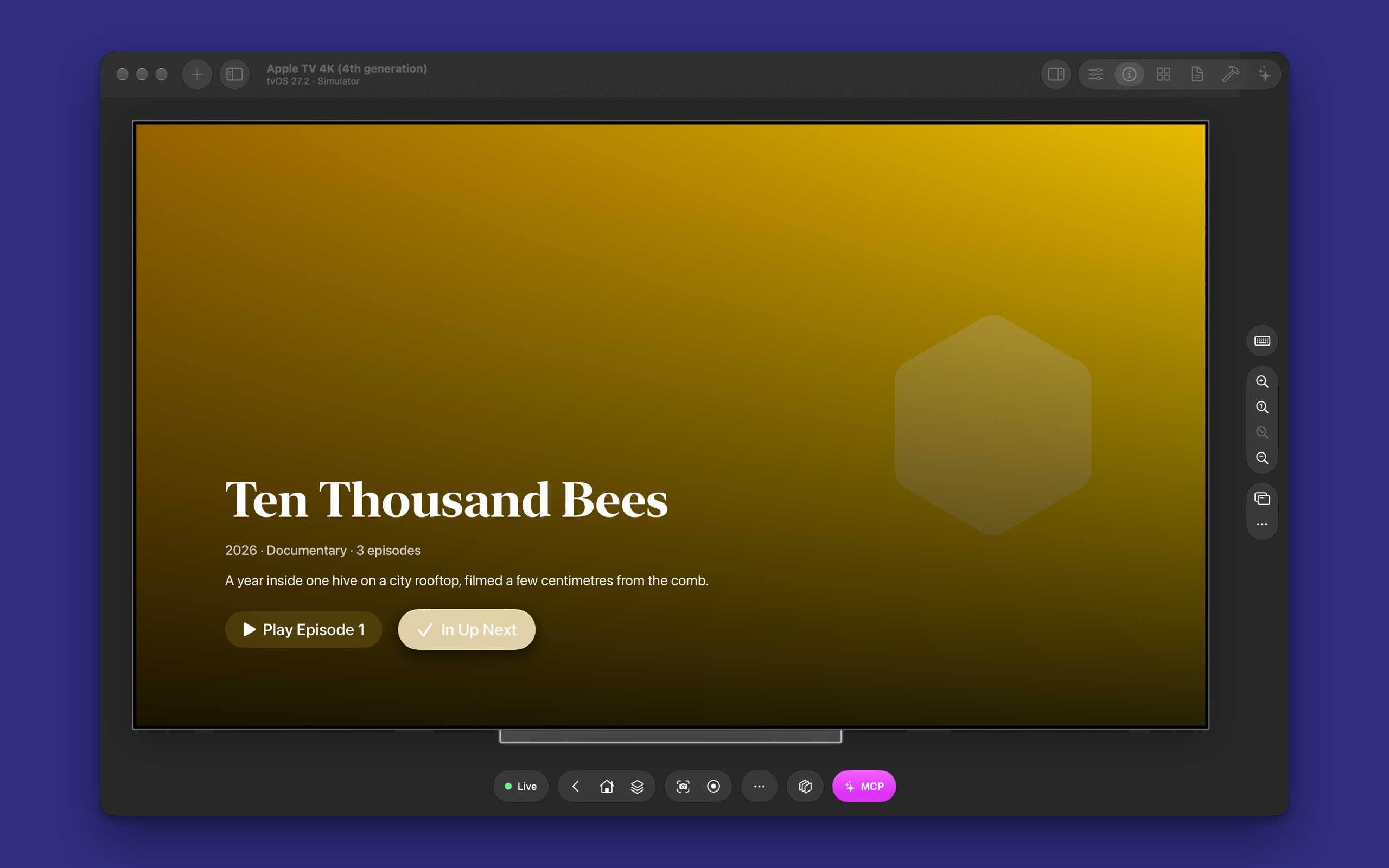
Then it answered:
The bee documentary is Ten Thousand Bees, and it has 3 episodes. I added it to Up Next in Marquee on the running Apple TV 4K (4th generation) simulator.
The agent planned its own route, like a person who looks at the screen and counts the presses. It didn't have to. tap does the counting for it.
How a tap works on a TV
On a TV, tap takes an element, from list_elements or a point on a screenshot, and walks the focus there. It presses one arrow, reads the screen to see where the focus went, and presses the next. It goes to the target's row first, then along it, because that's how tvOS lays most screens out. When the focus is on the element, it presses Select.
When the focus can't get there, the tap says so instead of pressing Select on the wrong thing. Some tvOS views don't report the focus at all, and some rows end before your target. Your agent hears that and tries another way, such as press_key or Menu.
The rest of the tools work the way a TV expects:
| Tool | On an Apple TV |
|---|---|
press_key | Presses an arrow. count repeats it. |
press_button | select, menu (back), play_pause, and home for the TV button |
swipe, scroll | Move the focus, the way the content would scroll |
go_back | Presses Menu |
type_text | Types into tvOS's keyboard screen |
list_elements | Lists the screen and marks the focused item |
system_gesture | app_switcher (TV pressed twice) and control_center (TV held) |
What to ask it
- Walk your app's main paths. "Open my app on the Apple TV simulator, play the first episode of the featured show, pause it and go back." Your agent reports where the focus got stuck.
- Check focus order. On a TV, a button the focus can't reach doesn't exist. Ask your agent to visit every row and report anything it couldn't select.
- Check that Menu goes back. Ask your agent to open every screen, press Menu on each, and list the ones that don't go back to where they came from.
- Check both screens. "Open the same show on my iPhone and on the Apple TV simulator and tell me what's different." Device MCP Pro mirrors both at once.
- Smoke-test in CI.
device-mcp-clistarts the simulator, launches your app and waits for text, with no window, on a CI Mac.
What's different from an iPhone
- Simulators only. Device MCP doesn't mirror a real Apple TV.
- No touch. Every tap is a focus walk, so it takes a moment longer than on an iPhone.
- No Settings tab, clean status bar or clipboard. tvOS's simulator doesn't take them. Open the TV's own Settings app instead.
- Starts full. Slim simulators are iOS and watchOS only.
The full details are in the Apple TV docs.
Try it
Download Device MCP, or choose Device MCP → Check for Updates… if you have it. Add a tvOS 27 runtime in Xcode → Settings → Components, start an Apple TV simulator from the sidebar, then add Device MCP to Claude Code with one command:
claude mcp add --scope user device-mcp -- "/Applications/Device MCP.app/Contents/MacOS/device-mcp"
Then ask your agent to open your app on the Apple TV. Apple Vision Pro simulators are here too: read how your agent looks and pinches.
What's next
- DocsApple TVStart, mirror and control Apple TV simulators on tvOS 27 in Device MCP, with a Siri Remote on your keyboard, and let your AI agent test your tvOS app with the same MCP tools.
- BlogApple Vision Pro simulators in Device MCP: your agent looks and pinchesDevice MCP now mirrors and controls visionOS 27 simulators. A click becomes a look and a pinch, and your AI agent gets the same input over MCP, so it can open your visionOS app, use it and tell you what it saw.
- DocsMCPConnect Claude Code, Codex, Cursor or any MCP client to Device MCP, so your AI agent can see, tap, type and test on your iPhone and iPad.
Device MCP is made by Proxyman LLC, the team behind  Proxyman,
 Tiny Shield and
 TCP Viewer.